
Drop Cap in Textbox in Word
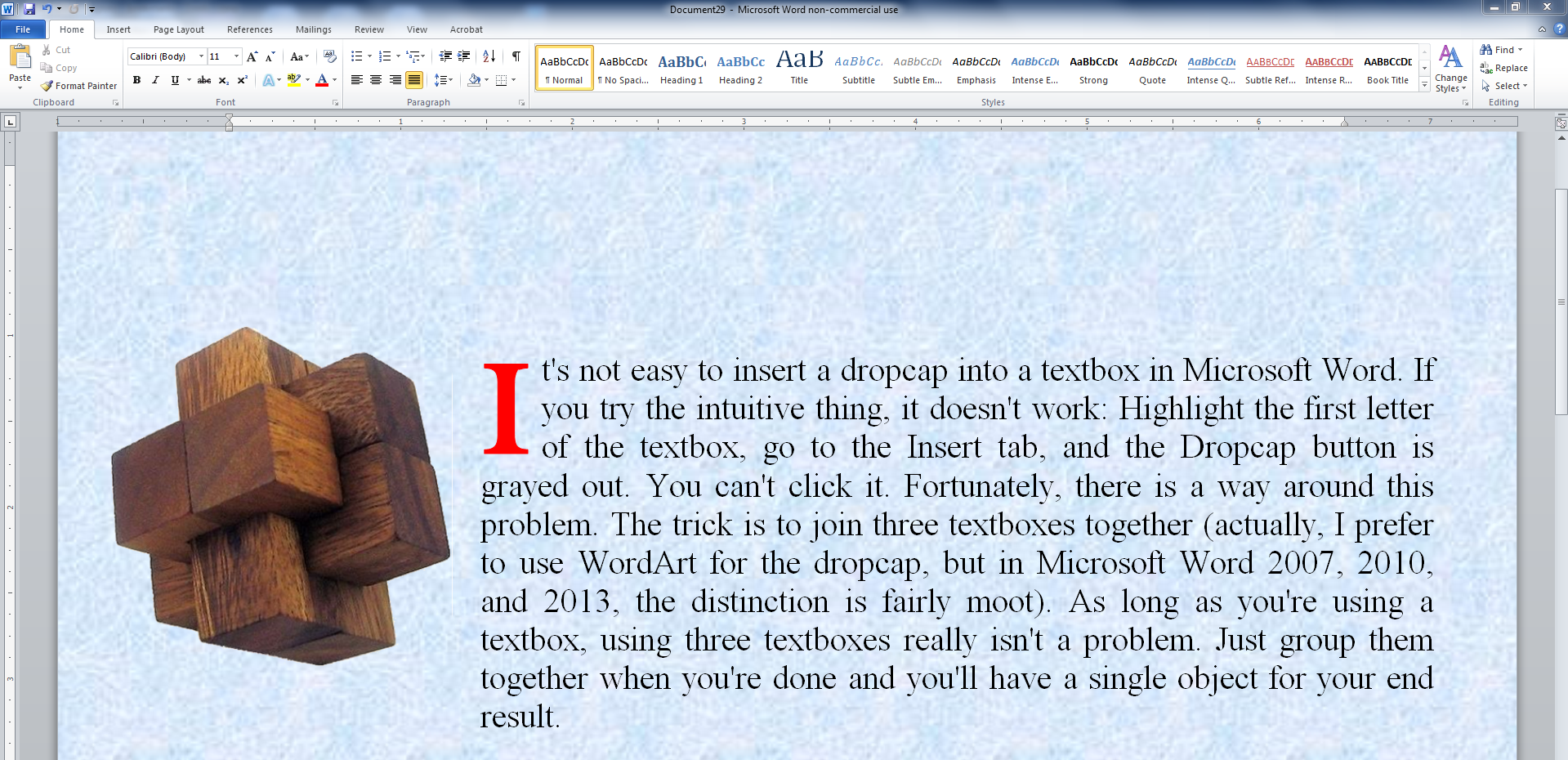
It’s not easy to insert a drop cap into a textbox in Microsoft Word. (Inserting a drop cap at the beginning of a chapter is easy; doing it in a textbox is another matter.)
If you try the intuitive thing, it doesn’t work: Highlight the first letter of the textbox, go to the Insert tab, and the Dropcap button is grayed out. You can’t click it.
Fortunately, there is a way around this problem.
The trick is to join three textboxes together (actually, I prefer to use WordArt for the drop cap, but in Microsoft Word 2007, 2010, and 2013, the distinction is fairly moot).
As long as you’re using a textbox, using three textboxes really isn’t a problem. Just group them together when you’re done and you’ll have a single object for your end result.
Here are the step-by-step directions, then following these…
View original post 460 more words


 Viv Drewa - The Owl Lady